
Welcome to the Together Financials Client Portal!

Your client portal is the central hub for everything related to our work together. This is where we’ll share documents, manage invoices, complete tasks, and keep communication clear and organized — without things getting lost in email.
This guide walks you through each section of the portal so you know exactly where to find what you need (and where to upload things when I need something from you).
Table of Contents
Logging in to the Portal
Homescreen
Invoices & Payment Methods
Tasks To Do
Inside a Task
Agreements
Files
FAQs
You’ll log in using the same portal link every time:
https://courtney-martin.moxieapp.com/login
I include this link in most emails I send, so it’s always easy to access. You’re welcome to bookmark it for convenience.
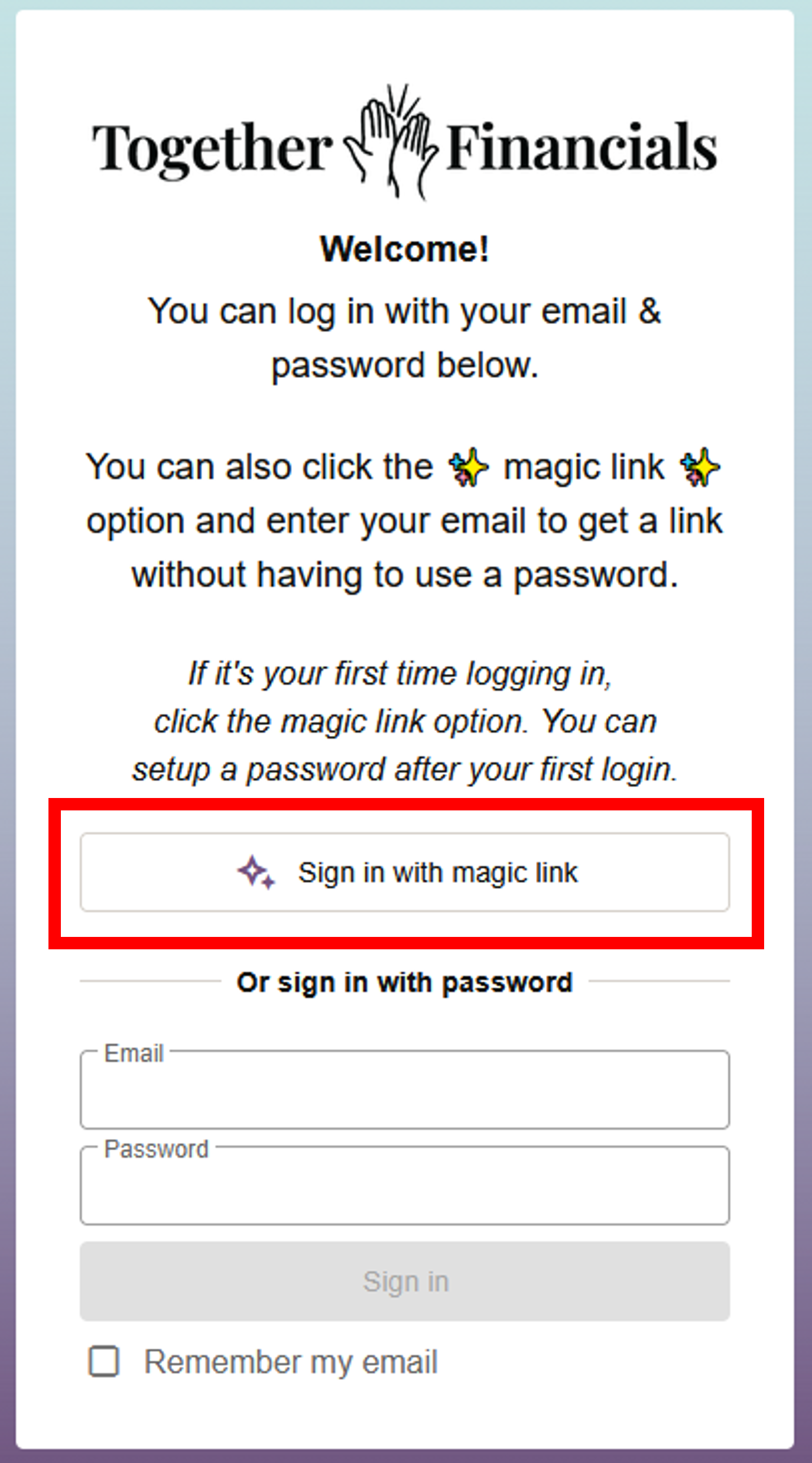
First-Time Login: Magic Link
The first time you log in, you’ll use a magic link:
Click Sign in with a magic link
Enter the email address I have on file for you (this is the same email that received your contract and invoice.)
Check your email and click the secure login link
Once you click the link, you’ll be taken directly to your dashboard.
Logging in to the Portal
Your Homescreen
Once logged in, you’ll land on your homescreen — think of this as your command center.
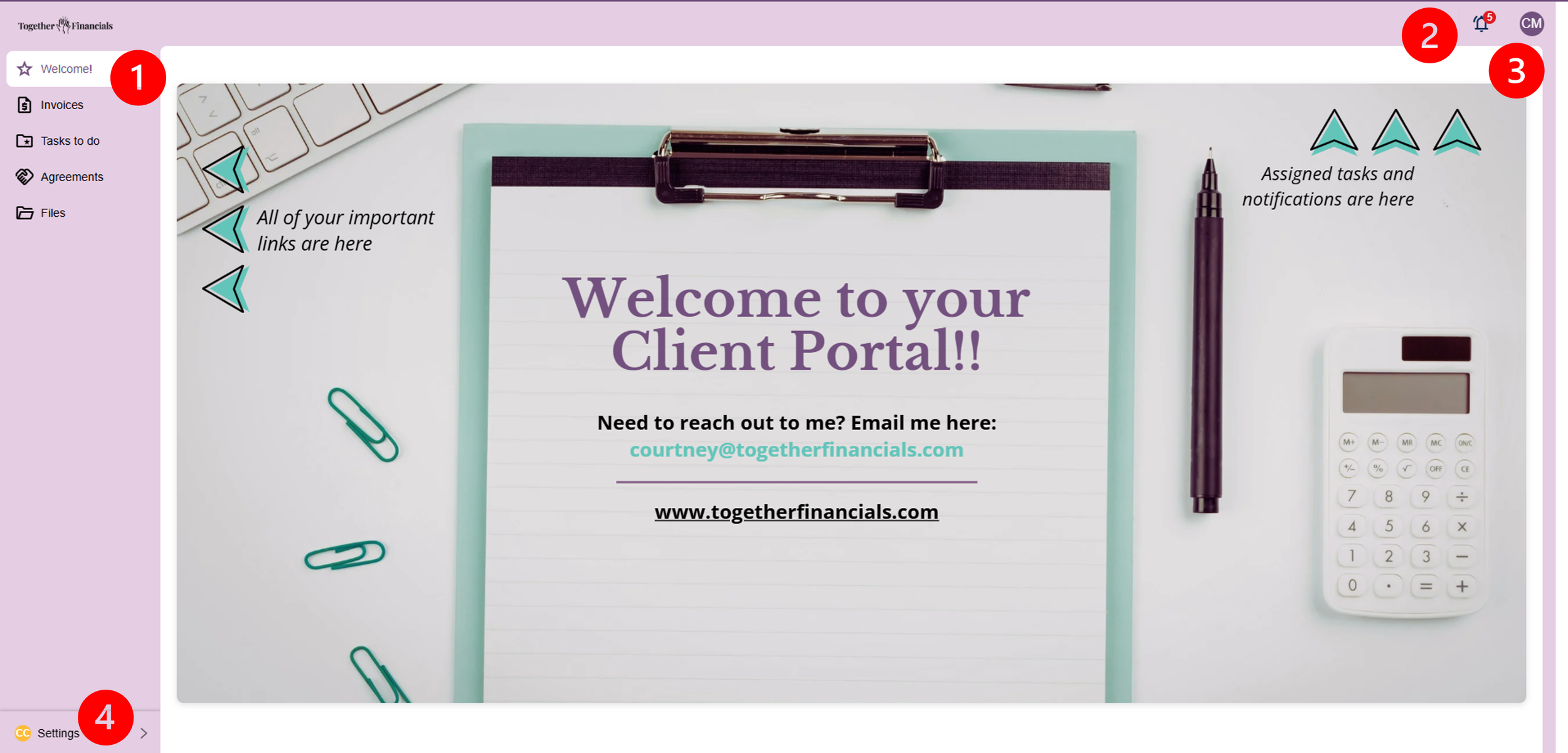
On the left-hand side, you’ll see tabs (1) for:
Welcome (this home screen)
Invoices
Tasks To Do
Agreements
Files
At the top of the screen, there’s a notification bell (2) that shows anything new since your last visit.
In the top right corner, you’ll see a circle with your initials (3). Clicking this allows you to:
Set or update a password
Disable your password if you prefer using magic links only
If you ever change your mind, you can switch between password login and magic link login at any time.
In the bottom left corner, you’ll find Settings (4), where you can:
Change your language preferences
Switch between light mode and dark mode
The Invoices tab is where you manage the financial side of our work together.
Here, you can:
View current and past invoices
Pay unpaid invoices securely
Download receipts
Update payment methods
When you click on an invoice, you’ll be able to see its status and either download it or pay it directly.
Payments are processed securely through Stripe. You can:
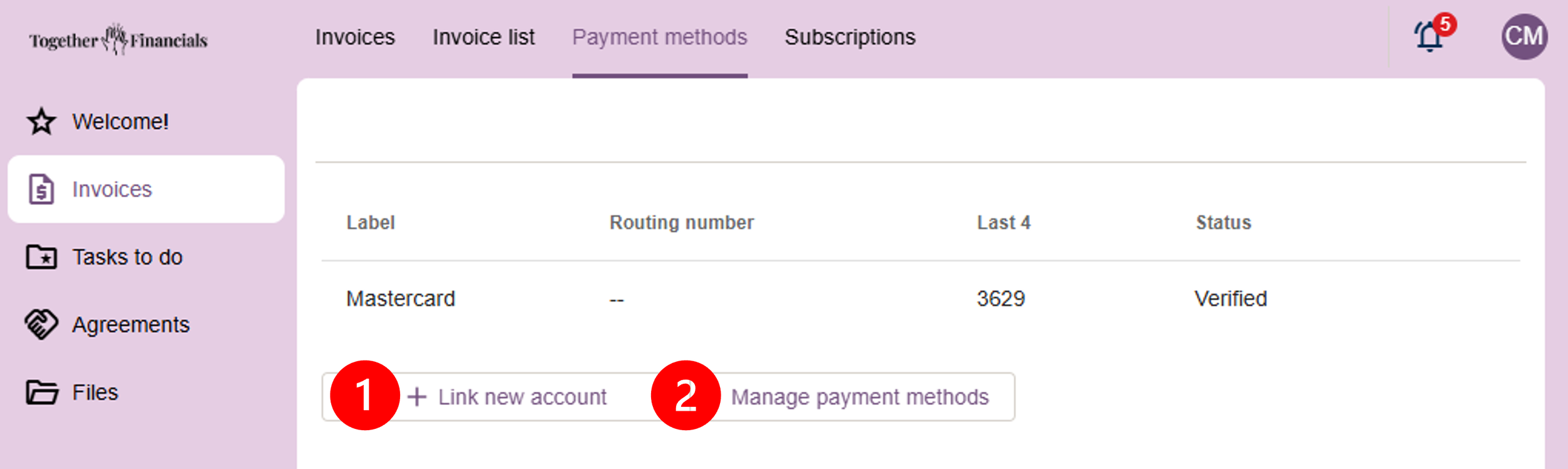
Add a new card
Add bank account and routing details for ACH payments
Update saved payment methods
Invoices & Payment Methods
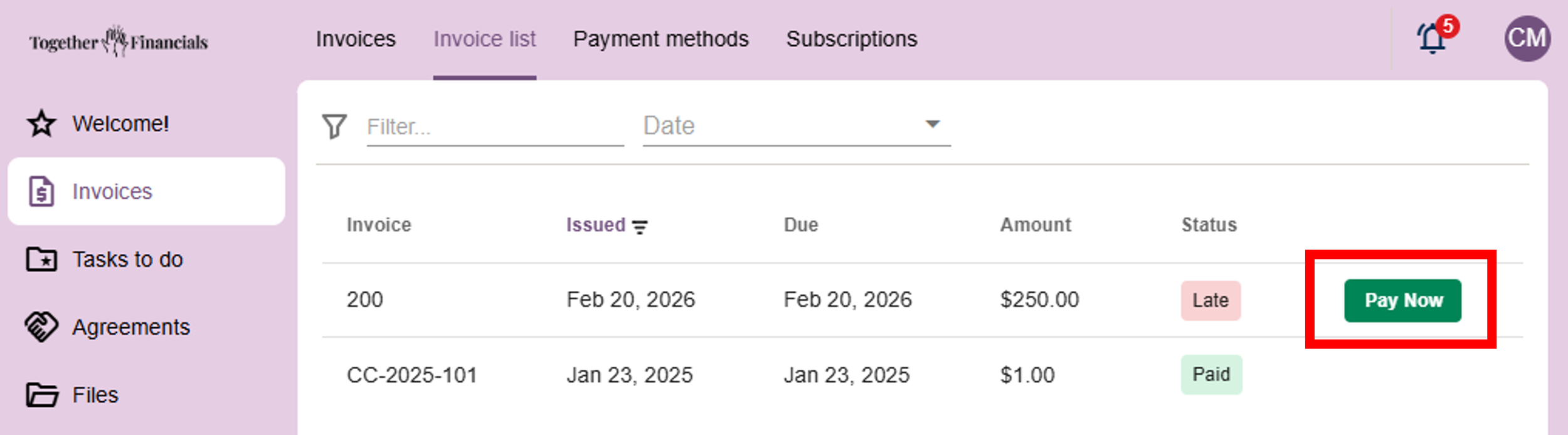
View unpaid invoices and pay them here.
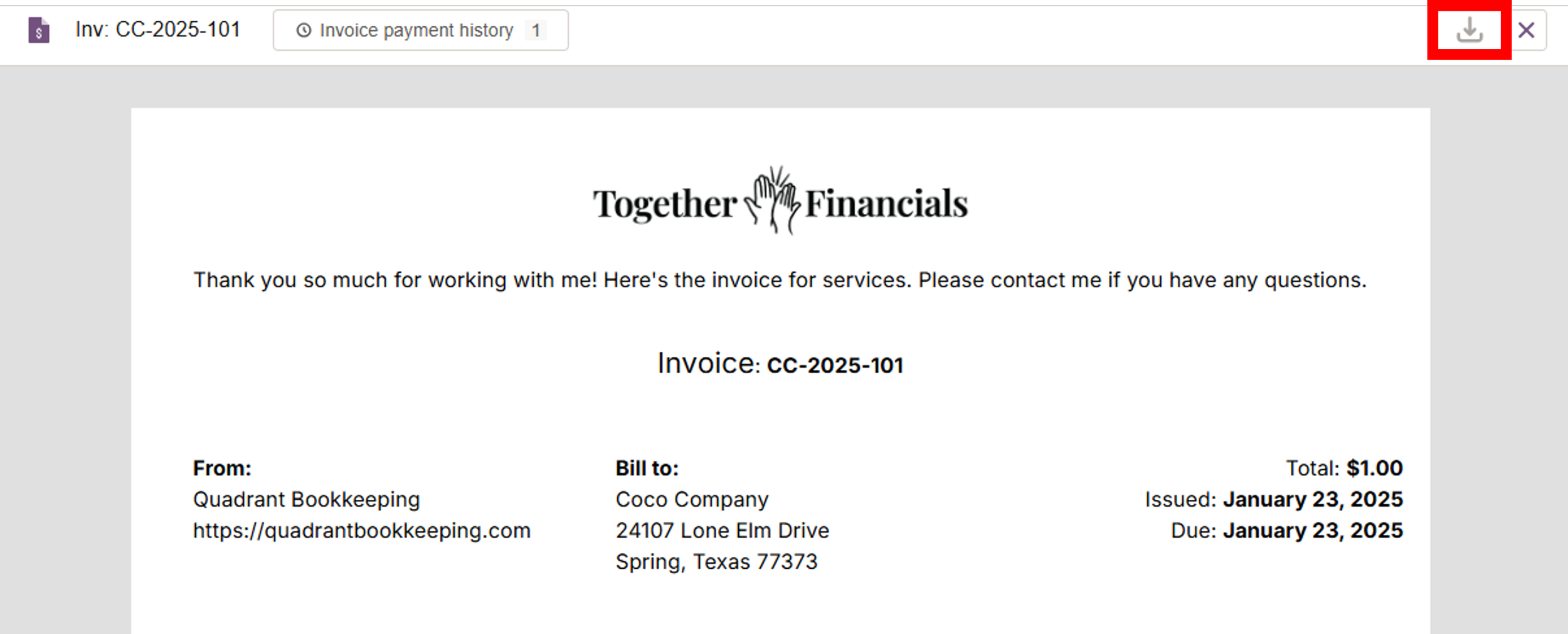
Click on an invoice to view it, and you can download it using the down arrow button in the top right corner.
Add bank account & routing numbers for ACH payments (1), or add/change current payment cards (2).
Agreements
The Agreements tab is where you’ll find:
Proposals
Signed contracts
Agreement statuses
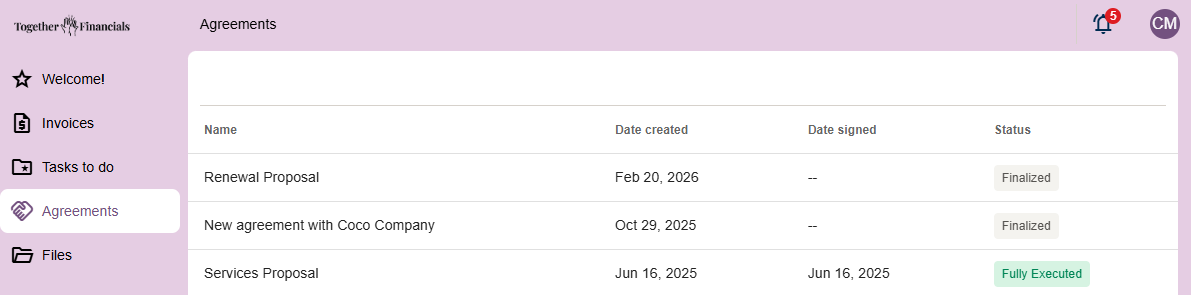
Agreement statuses:
Finalized: Sent but not signed
Fully Executed: Signed and submitted
You can:
Open agreements
Sign documents
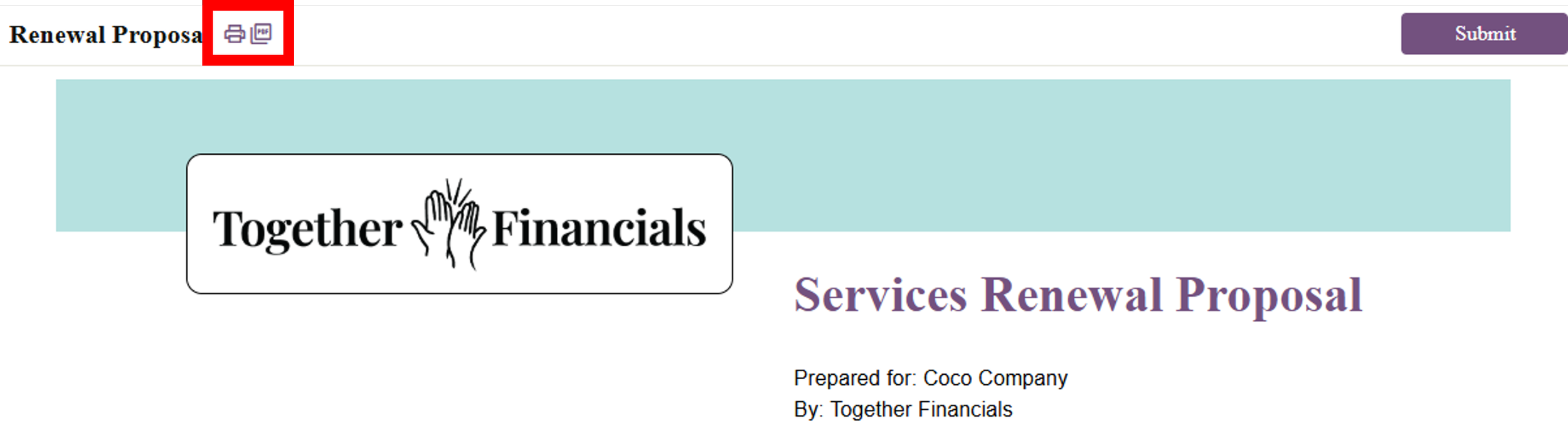
Download or print copies
Tasks To Do
The Tasks To Do section is one of the most important parts of the portal.
Whenever I need something from you — documents, payroll hours, clarification on a transaction — I’ll create a task here so nothing gets missed.
How Tasks Work
You’ll receive an email when a task is assigned
You’ll get reminder emails every 3 days until it’s completed
Tasks are grouped into projects, shown as cards
Most clients will only see one project at a time, but you may see more if we’re:
Onboarding
Doing cleanup work
Handling multiple services at once
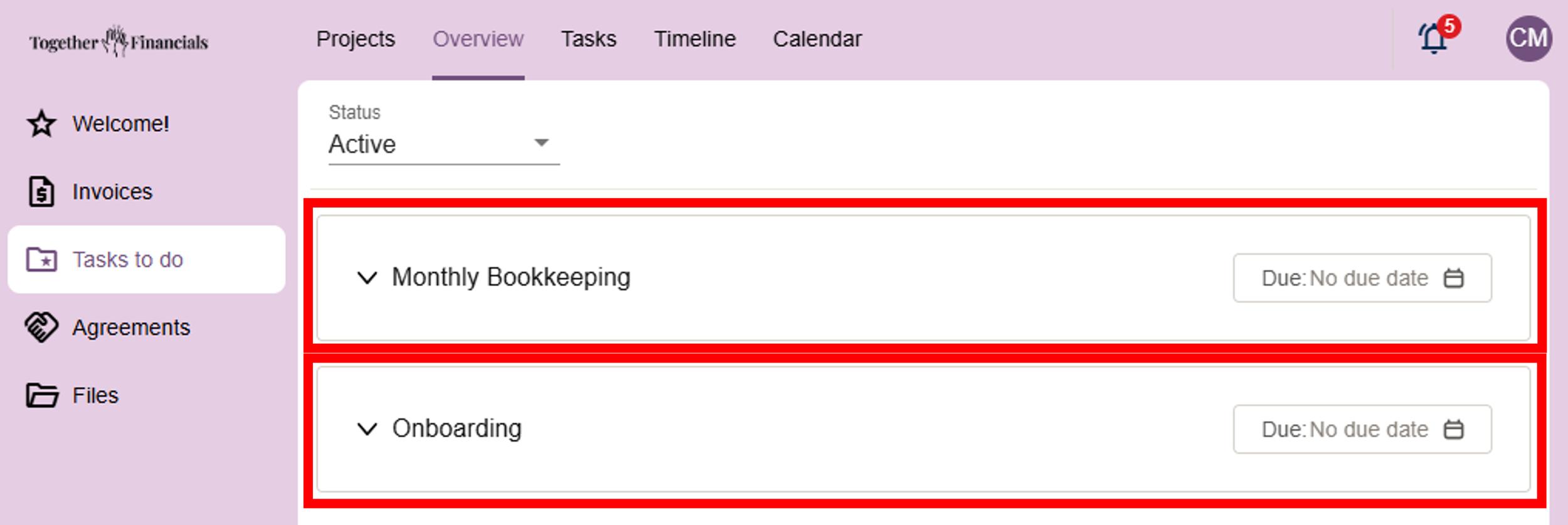
For example, the above has 2 different project cards, each with their own tasks.
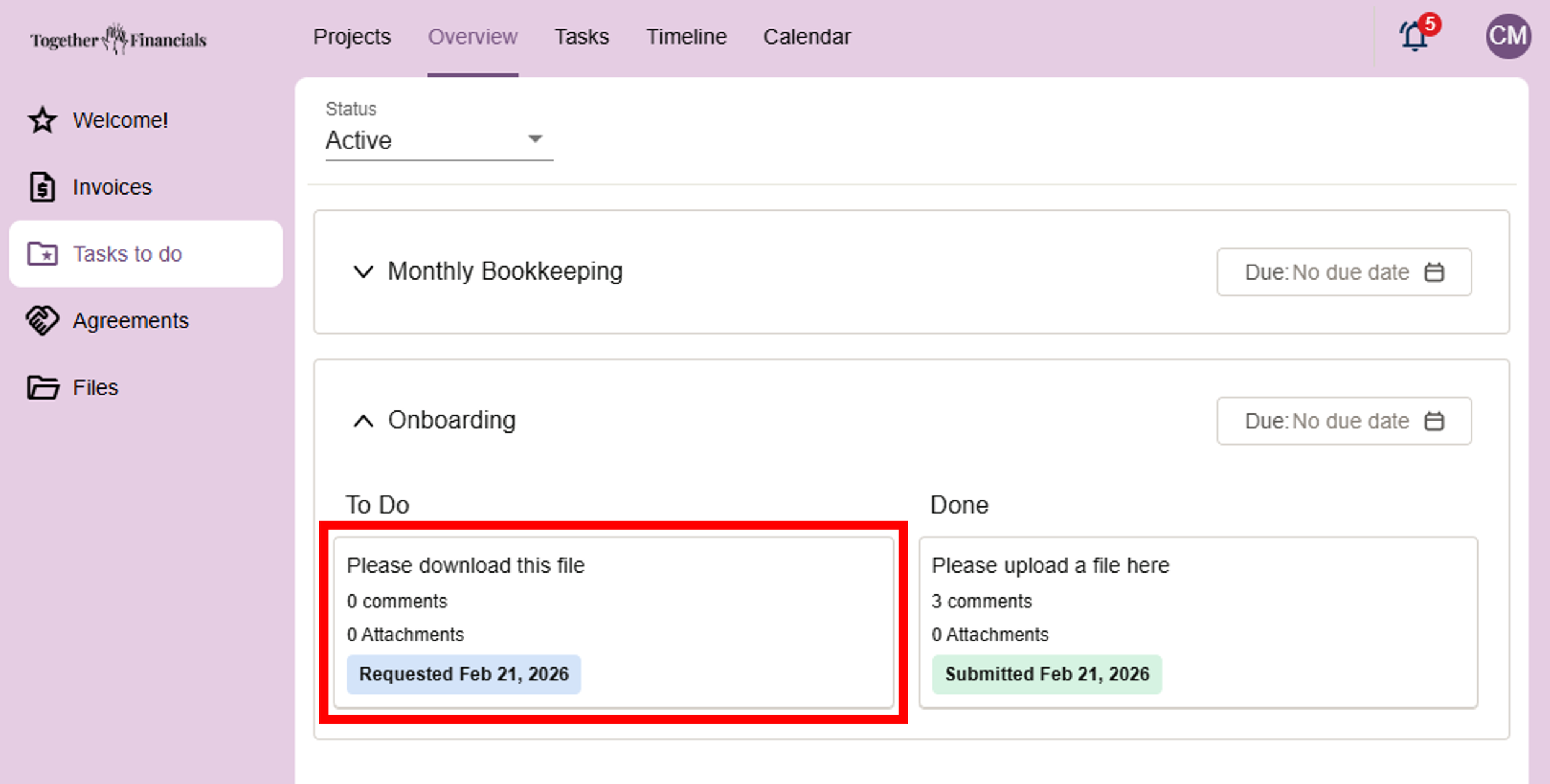
This is a task in the project card. You will click on it to open for more information.
Inside a Task
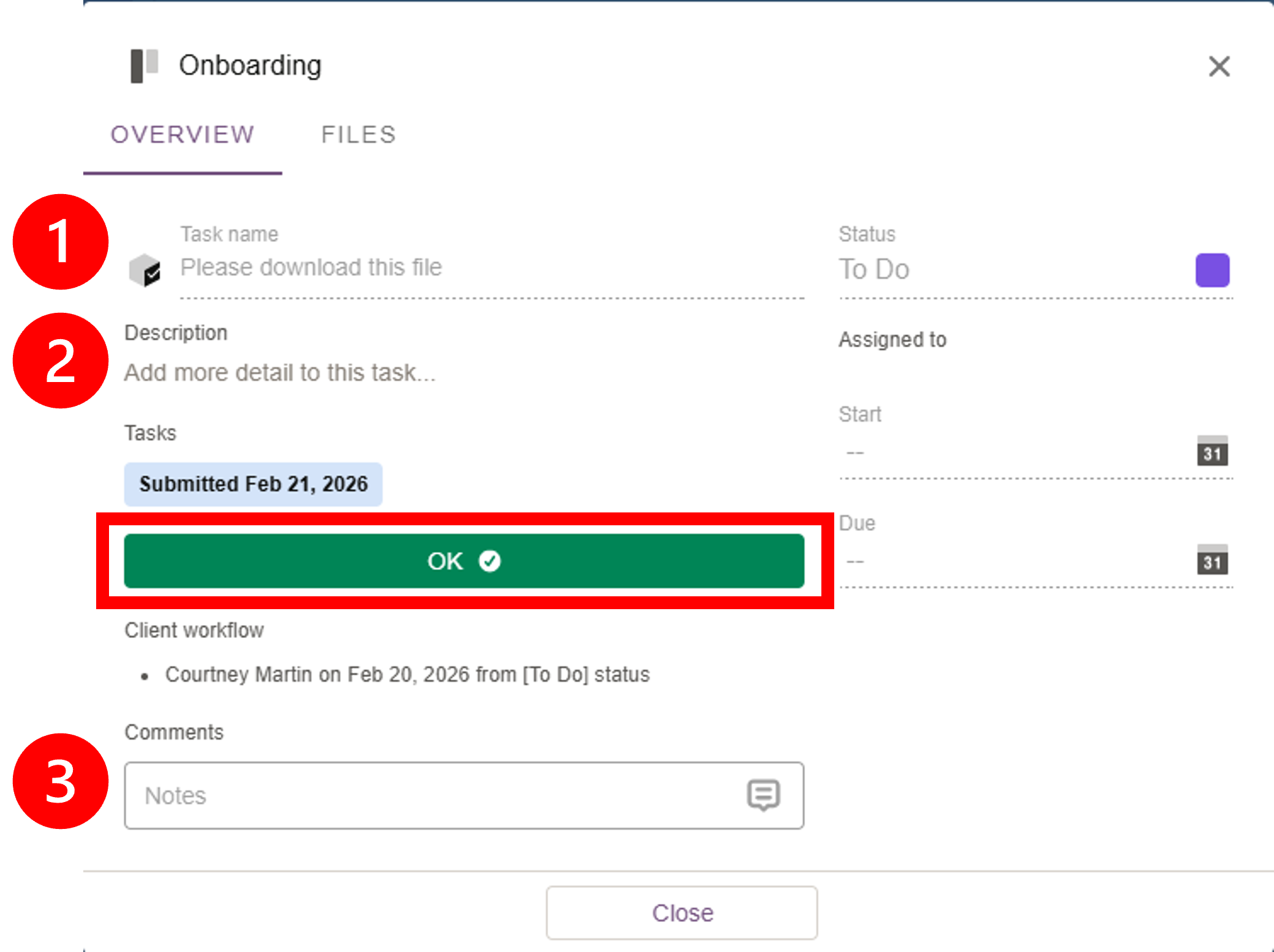
When you open a task, you’ll see several sections:
Task Overview
Title: A short description of what’s needed (1)
Description: Detailed instructions, links, or questions (2)
Comments: A place for us to communicate back and forth (3)
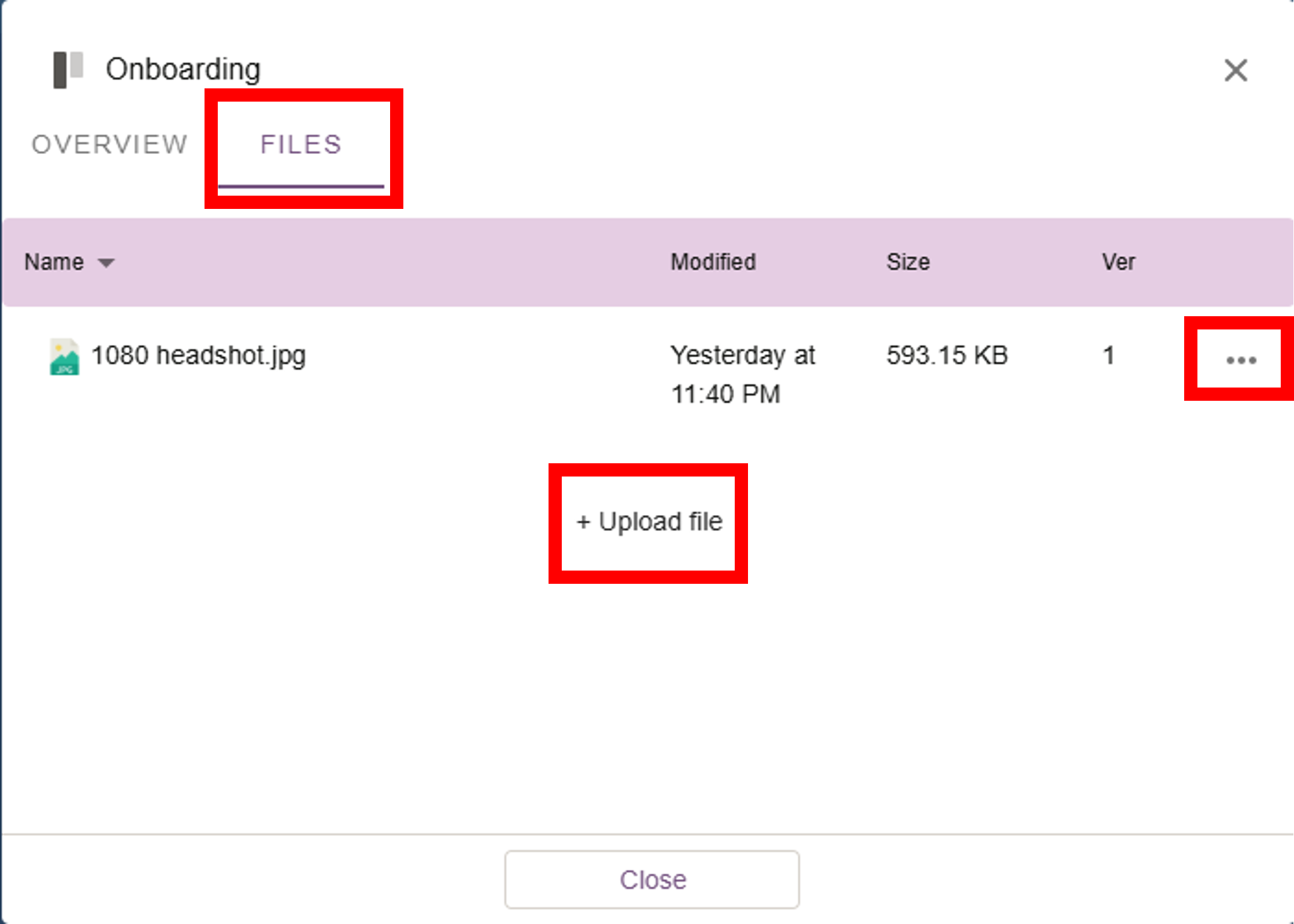
Task Files
Upload files directly inside the task
View or download files I’ve attached
Submitting a Task
Once everything is complete, click OK to submit the task.
Important note: Once a task is submitted, you can’t add or edit files within that task anymore. Be sure everything is uploaded before submitting.
If you realize later that you forgot something, no worries at all you can always email me!
Files
The Files tab is where all shared documents live, including:
Financial statements
Payroll reports
Sales tax confirmations
Other important records
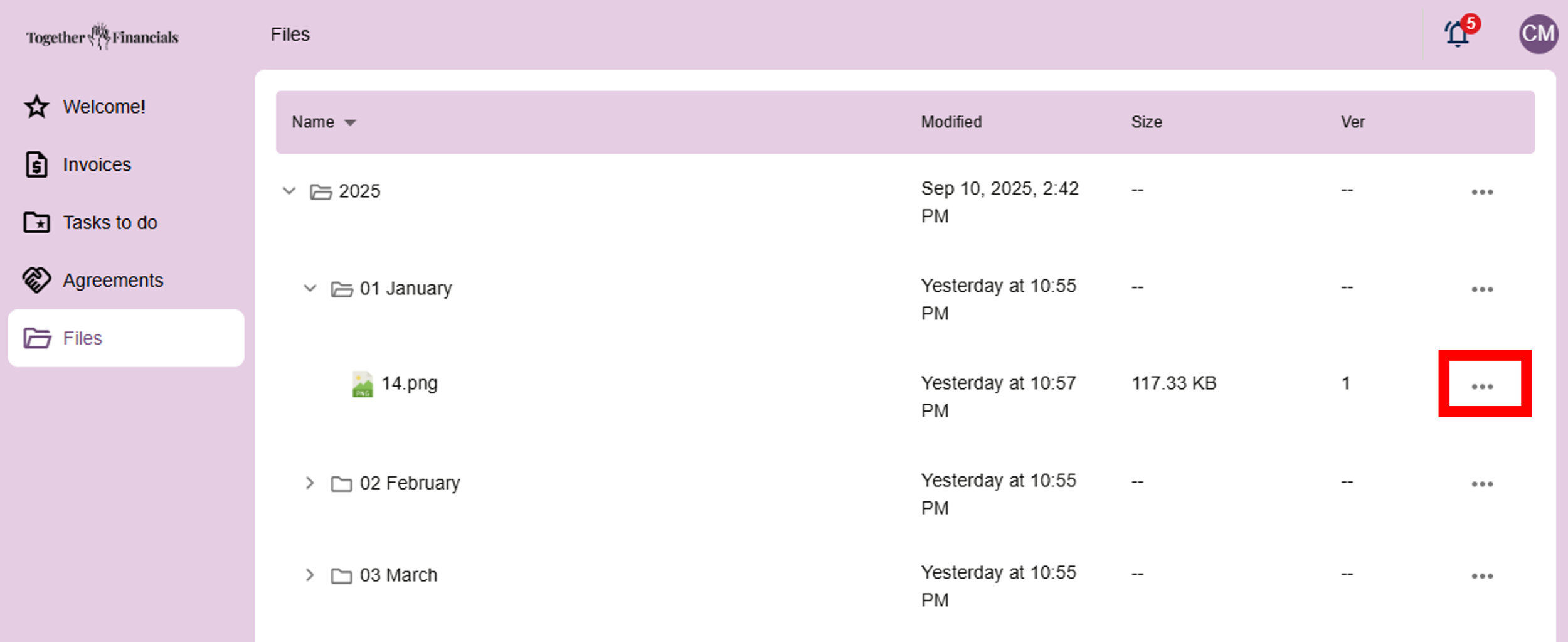
Files are organized by year, then by month, so they’re easy to find.
Examples:
A January 2025 Profit & Loss report →
2025 > JanuaryA full-year report →
2025(not inside a month folder)
You can view or download documents by clicking the 3 dots on the right-hand side of the document name.
Frequently Asked Questions
-
First, verify you're using the correct email address and password. Clear your browser cache or try using an incognito/private browser window. If you still can't access your portal, contact me at courtney@togetherfinancials.com.
-
Try refreshing your browser or clearing your cache. Make sure you're using an updated browser version. If the problem persists, please take a screenshot of the issue and email it to me at courtney@togetherfinancials.com
-
We've created a walkthrough video that shows you how to use all portal features. You can view it here: https://vento.so/view/41cfb030-dee8-49f0-ab8e-e1878142ec2e?utm_medium=share
-
I recommend logging in at least once a month to stay updated. Of course, you'll also receive email notifications about important updates.
-
Absolutely! Feel free to always send me feedback or ideas, I am always open to ways to improve.